Connect your Google Calendar (private schools)
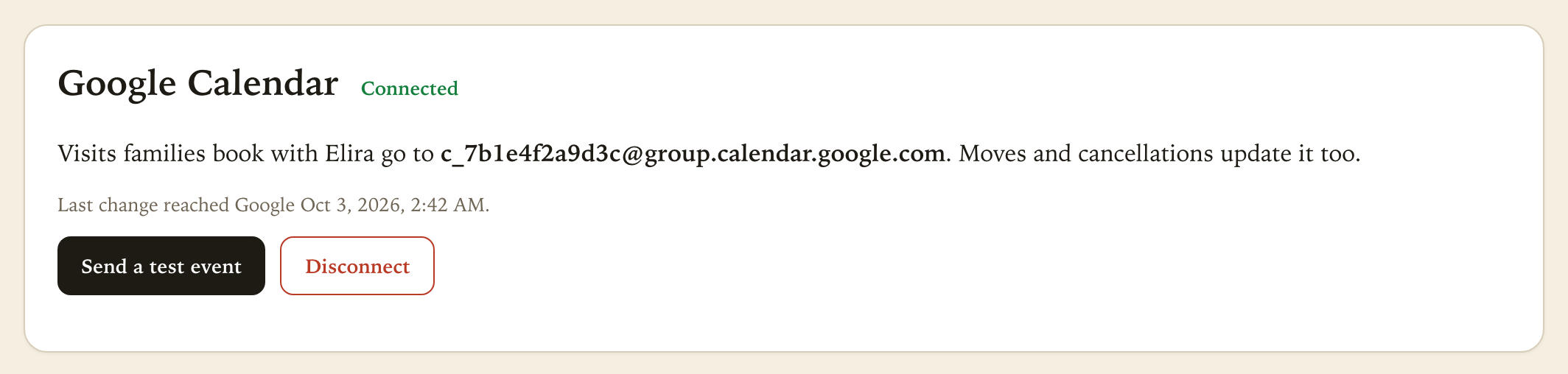
Share one Google Calendar with AskElira and every visit a family books with Elira appears on it — moves and cancellations too.
When a family books a tour, open house or admissions interview with Elira, the visit appears on your school's Google Calendar — with the family's name, email and mobile, and their child's first name and grade. If the family moves the visit, the event moves. If they cancel, it comes off.
It takes about five minutes, once. You need to be able to open your school's Google Calendar in a web browser.
Step 1 — Choose the calendar
Pick the Google Calendar the admissions office already uses, or make a new one just for visits:
- Open Google Calendar on a computer.
- On the left, next to Other calendars, click + → Create new calendar.
- Name it, for example Admissions visits, and click Create calendar.
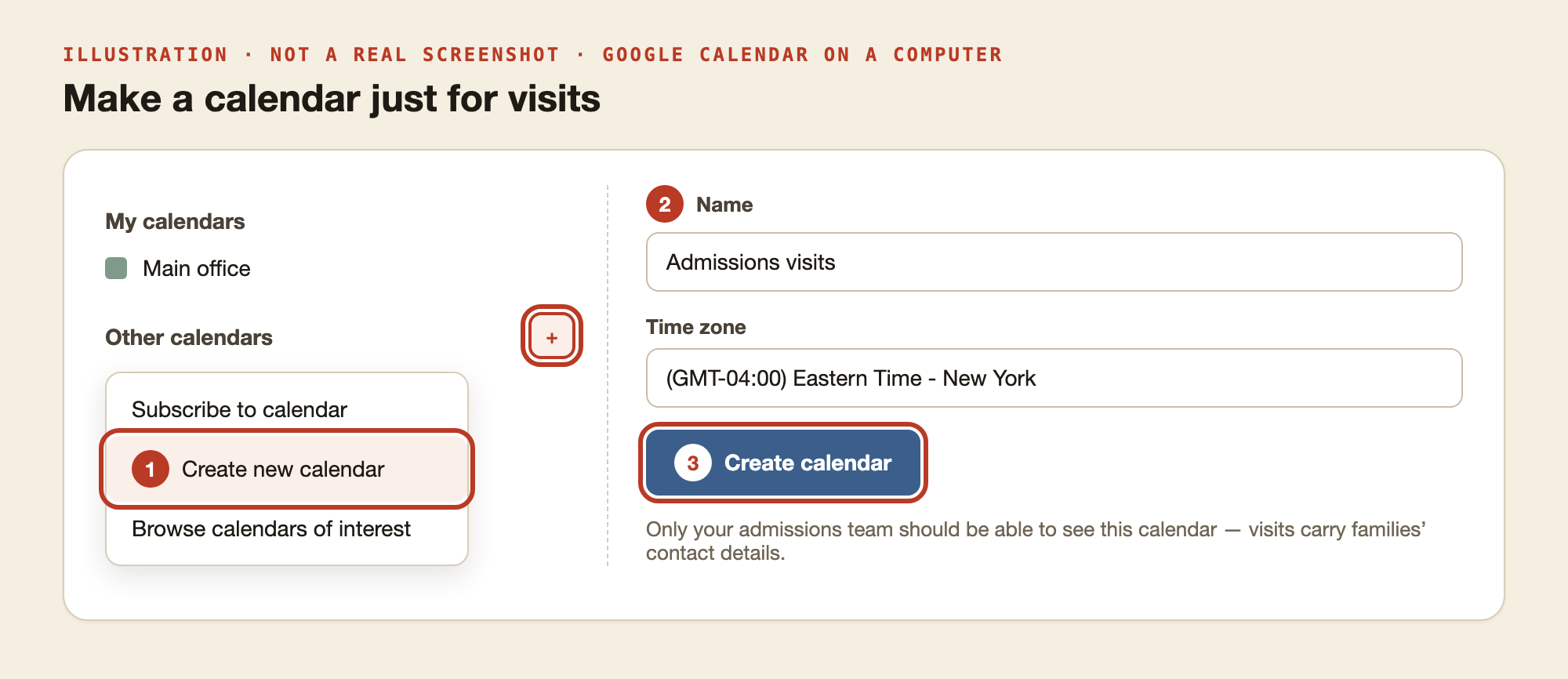
Everyone who can see this calendar sees the families' contact details. Choose a calendar only your admissions team can see.
Step 2 — Share it with AskElira
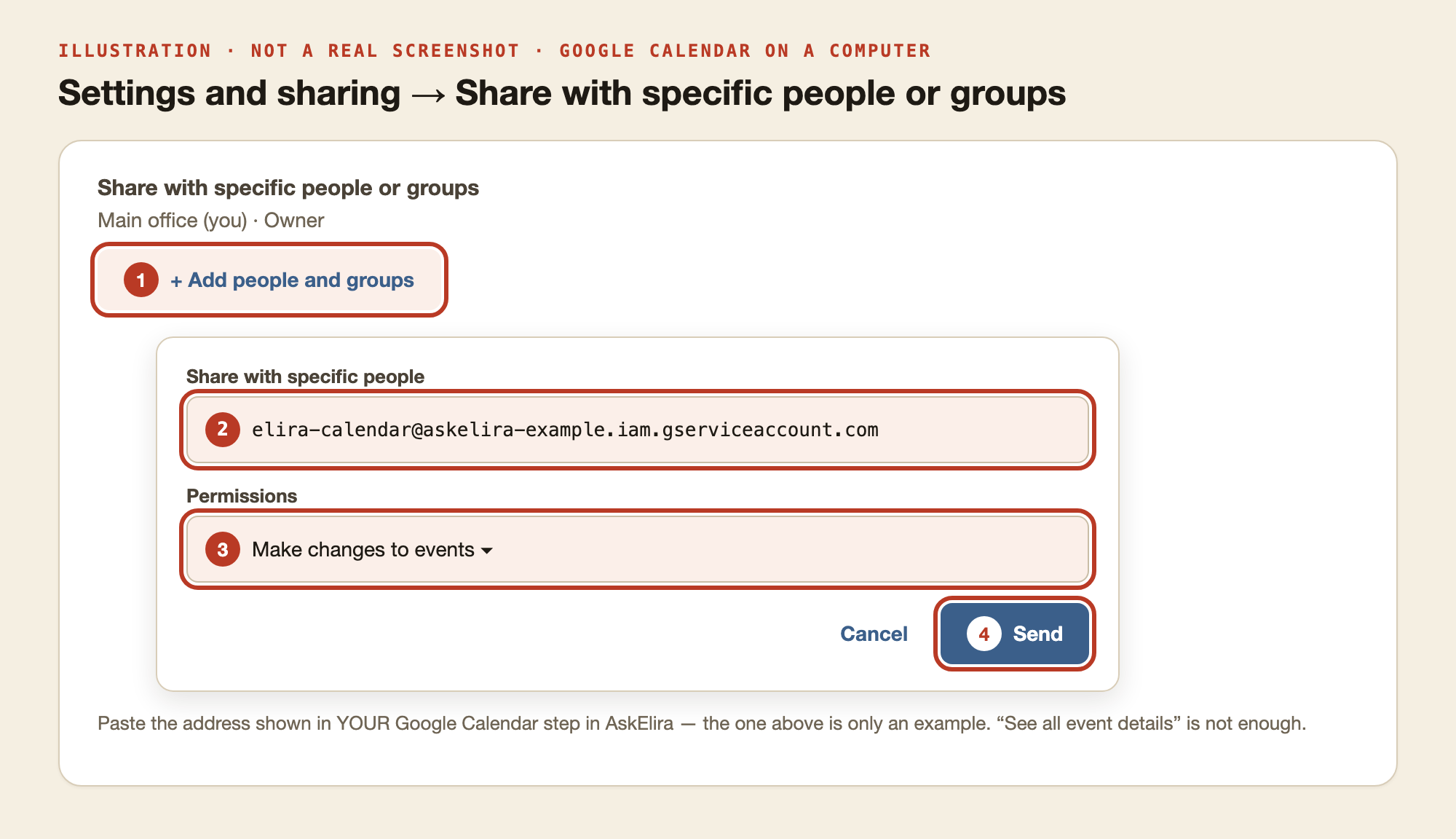
- Open Build Elira's Brain and go to the Google Calendar step. Click Copy address — the address ends in
.iam.gserviceaccount.com. - In Google Calendar, point at your calendar under My calendars, click the three dots, then Settings and sharing.
- Scroll to Share with specific people or groups and click + Add people and groups.
- Paste the AskElira address.
- Under Permissions, choose Make changes to events. "See all event details" is not enough — Elira needs to add visits.
- Click Send.
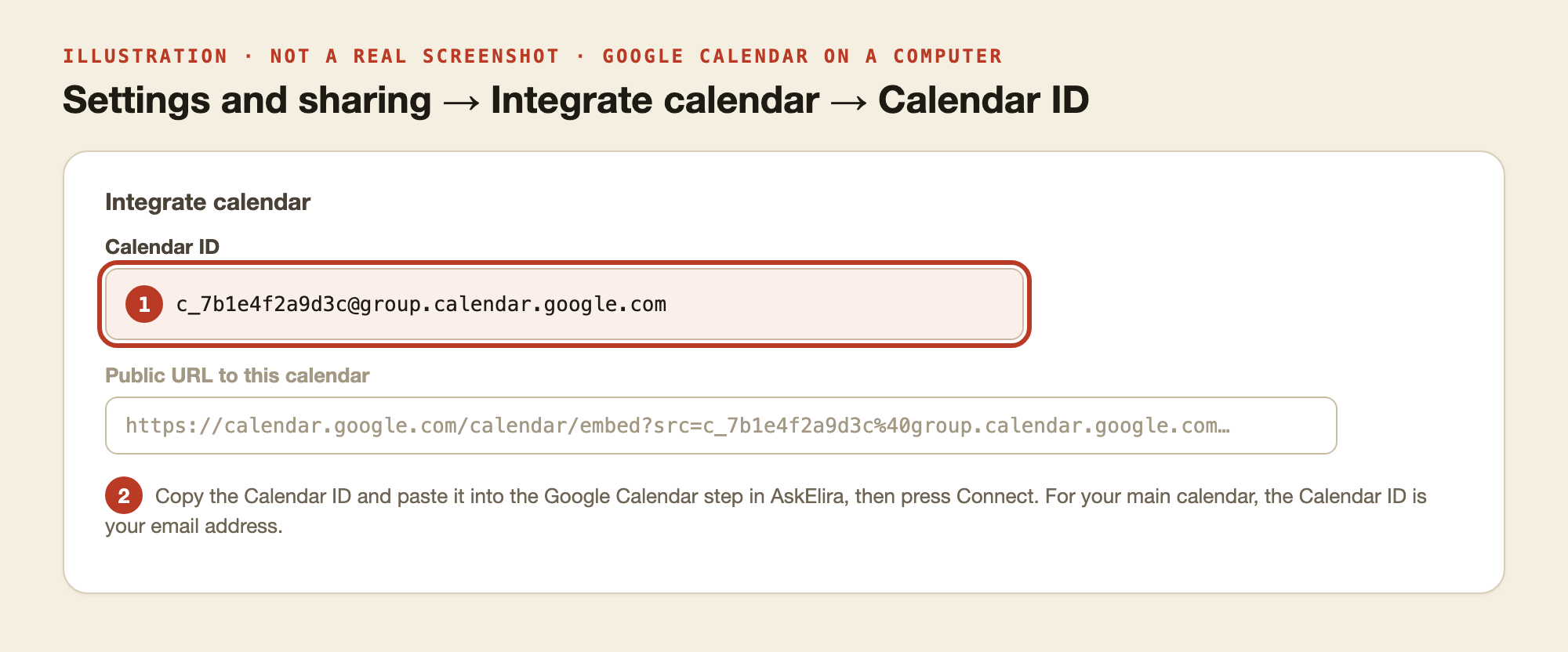
Step 3 — Copy the Calendar ID
On the same Settings and sharing page, scroll down to Integrate calendar. Copy the Calendar ID. It often ends in @group.calendar.google.com. For your main calendar it is your email address.
Step 4 — Connect
Back in the Google Calendar step, paste the Calendar ID and click Connect. AskElira adds a test event to check it can write there. Look for "AskElira test event" on your calendar in the next half hour — you can delete it.
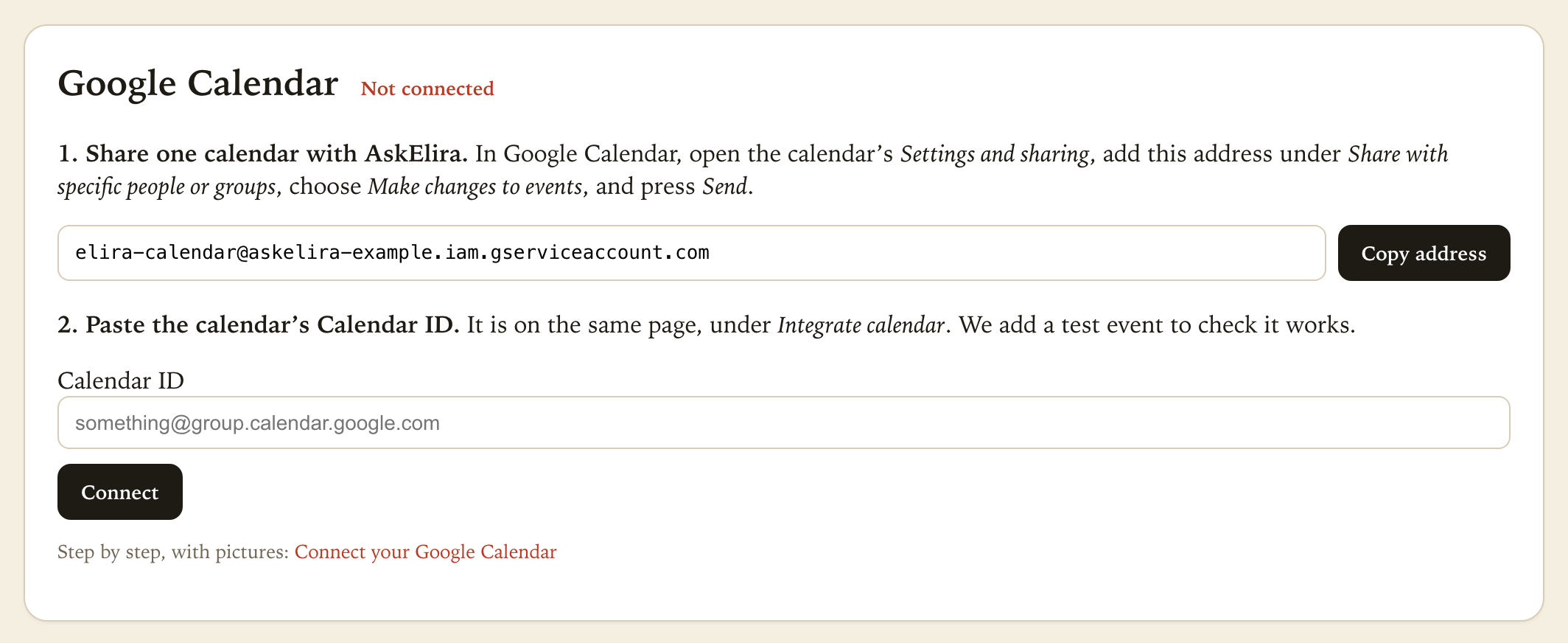
If it says the calendar could not be found, check the Calendar ID and that you shared the calendar with the address from Step 2. If it says the calendar is only shared "to see events", change the permission to Make changes to events.
What lands on your calendar
- Title: the kind of visit and the family's name, for example *Campus tour: Mei Chen*.
- Time: the time the family picked, in New York time, one hour long.
- Notes: the family's name, email and mobile, the child's first name and grade, and how they booked (your visit page, email, text or phone).
Families get no invitation from Google. Elira confirms the visit to the family herself, with a link to move or cancel it. Practice bookings never go to your calendar.
Change visits in AskElira, not in Google Calendar. Moving or deleting the event in Google does not reach AskElira or the family. To cancel a visit, use Visit times in Build Elira's Brain; the family moves or cancels it with the link in their confirmation.
If a visit does not reach your calendar
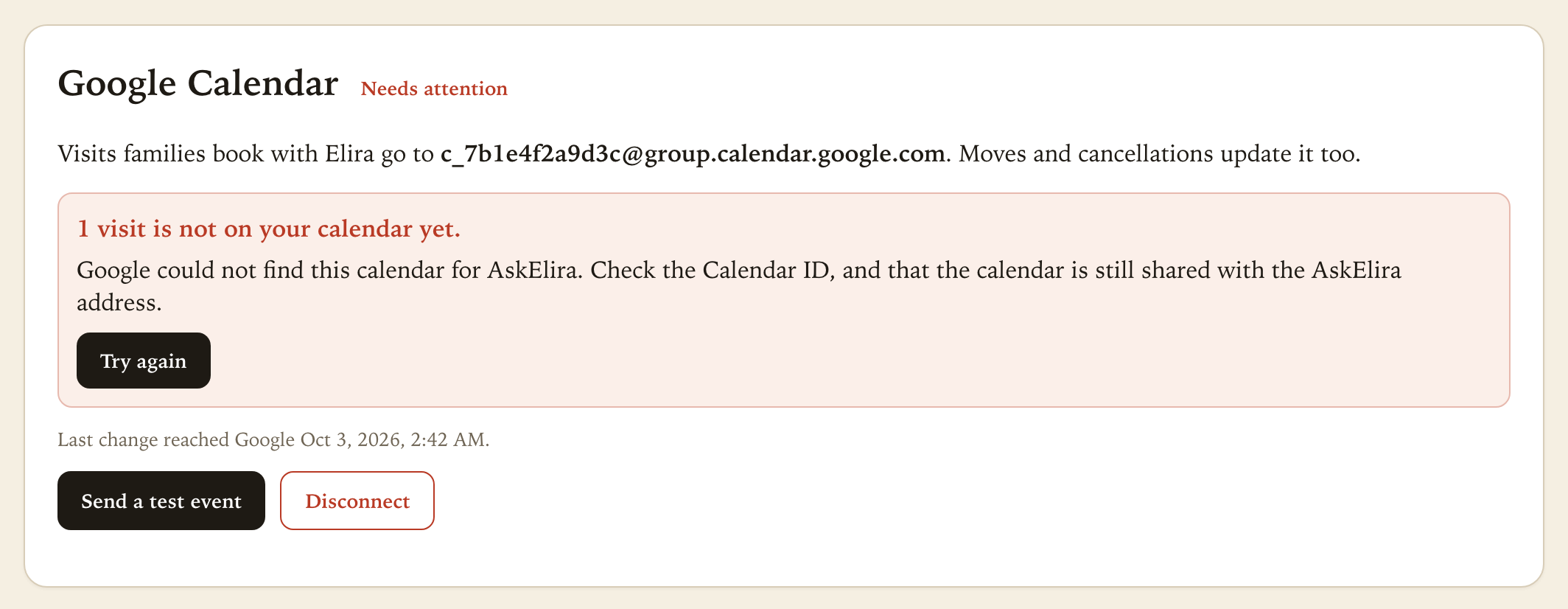
The booking itself is always kept. The step shows Needs attention, how many visits are missing, and why. On a paid plan, your dashboard's Today panel shows it too. Fix the cause — usually the calendar was unshared or the permission changed — then click Try again. Send a test event checks the connection at any time.
What AskElira can and cannot do
AskElira can add, change and remove events on the one calendar you shared — and it only ever touches the visit events it added. It cannot read your other calendars, your email or your files. To stop: click Disconnect in the step, and remove the AskElira address from the calendar's sharing in Google. Events already on your calendar stay there; they are your school's.